
*Acorn, Wrangld, Paradigm, Contractor Loan Pro/Roofle
Follow the steps below if a merchant from one of our embedded sponsors needs to update their bank account information.
- Create two tickets - one for Moov and one for RePay. Please wait to create the ticket for RePay until we have all of the information needed and RePay has confirmed the account is unblocked. Use this KBA to troubleshoot the ACH Reject.
- Ticket name: {Merchant Name} - Update Moov Bank Account
- Status: Merchant Banking Issues
- Ticket name: {Merchant Name} - Update RePay Bank Account {Sponsor}
- Status: Level 2 or email the request to appsupport@momnt.com (don't forget to associate the company record if you email the request)
- Ticket name: {Merchant Name} - Update Moov Bank Account
- Send a secure email to the merchant requesting a voided check for the new bank account or ask them to fill out the ACH Authorization Form.
- Email template: Merchant - Needs to Update Banking
- Email template: Chase Update Bank Information
- Once we have received their new account information, add the new bank account to Moov and initiate the micro-deposits.
- Email the merchant and let them know to expect the MDs and provide us with the amounts or verification code once they receive them to be verified.
- Follow up with the merchant for the MDs or verification code after 3 days. If you don't hear back from them, tag the RSM/MSM and ask them to reach out to the merchant as well.
- Keep the Moov ticket open until their account is verified.
- Email the merchant and let them know to expect the MDs and provide us with the amounts or verification code once they receive them to be verified.
- Steps for the App Support ticket:
- Sync the HubSpot notes to the Jira tickets first!
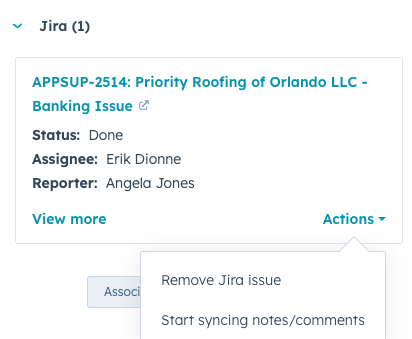
- Add a note to the ticket summarizing the actions you've taken and clearly outlining what you need from App Support to help prevent any confusion.
- Include the voided check or completed ACH authorization form.
- Include the merchant email address: You can find this in the merchant’s Moov account, located in the Contact section under the Overview tab.
- Sync the HubSpot notes to the Jira tickets first!
- Confirm there is a RePay token using the Repay Token by Merchant Name report once the new bank account has been added. *It can take at least 24 hours for the account to be verified. Check after 1 business day to ensure the repay token hasn't reset.